
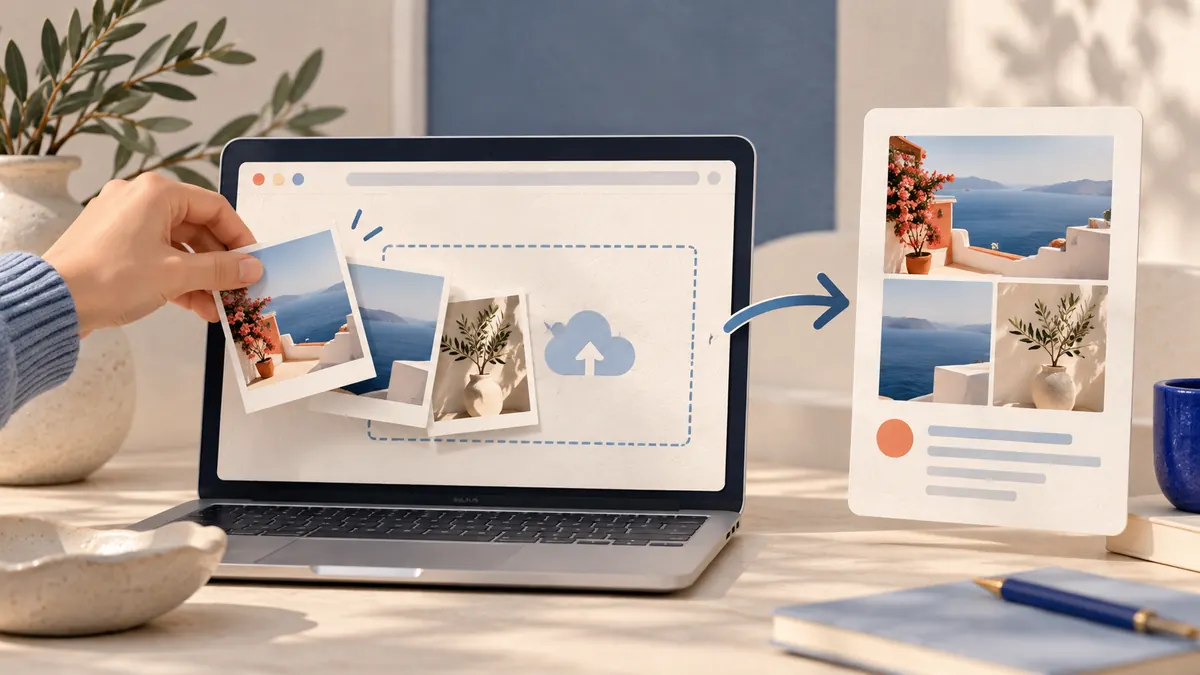
Yes, you can post on Instagram from a computer. Go to instagram.com in any browser, log in, click Create in the left sidebar, choose Post, then Select from computer. You can share photos, carousels and videos (which publish as Reels) without touching your phone.
The website has two gaps. There's no button to post a Story from the regular desktop view, and you can't schedule from it, since Instagram's built-in scheduling lives in the mobile app. For those, use Meta Business Suite or a scheduler that works in the browser, such as ViralFarm.
Here's how each option works, what it can and can't do, and how to fix the most common desktop upload problems.
| Method | Best for | What you can post | Scheduling |
|---|---|---|---|
| instagram.com | Posting one thing right now, from any account | Photos, carousels, videos as Reels | No |
| Meta Business Suite | Business and creator accounts that also run a Facebook Page | Posts, Reels and Stories for Instagram and Facebook | Yes |
| ViralFarm | Planning a queue across Instagram and other networks | Posts, carousels, Reels, Stories, trial reels | Yes, plus calendar and bulk scheduling |
Why post to Instagram from a desktop?
- Your files are already there. Edited photos and exported videos usually live on your computer. Uploading straight from the folder skips emailing or AirDropping them to your phone.
- Typing is easier. Long captions, line breaks and hashtag lists are faster to write and proofread on a keyboard.
- You can see more at once. A bigger screen makes it easier to check crops, review a carousel in order and catch typos.
- It fits a work routine. If you manage a brand account, keeping posting on the same machine as your other work keeps it out of your personal phone.
How to post from the Instagram website
This works on Windows, Mac and Chromebook in Chrome, Safari, Edge or Firefox, and with any account type.
Step by step
- Go to instagram.com and log in.
- Click Create (the plus icon) in the left sidebar, then click Post.
- Click Select from computer or drag files into the window. Photos can be JPG, PNG or HEIC/HEIF.
- To build a carousel, click the media icon in the bottom right and then the plus to add more files. Instagram carousels hold up to 20 photos or videos.
- Choose the crop size, then click Next.
- Apply Filters or Adjustments to photos, or set a cover and trim for a video, then click Next.
- Write your caption, add a location, tag people and open Accessibility to write alt text. Advanced settings lets you hide like counts or turn off comments.
- Click Share.
Videos you upload this way publish as Reels. Instagram allows Reels up to 20 minutes, but notes that Reels longer than 3 minutes won't be recommended to new audiences.
What the website can't do
- No Stories. The standard desktop layout doesn't have a Story upload option.
- No scheduling. Instagram's own scheduler (for public accounts, up to 30 days ahead) is in the mobile app, under More options when you create a post or Reel.
- Fewer creative tools. Expect the full sticker, text and effects tray to be on mobile, not on the web.
If your photo keeps getting cropped in odd ways, resize it to Instagram's ratios first with the free Instagram photo resizer.
Using Meta Business Suite to post and schedule
Meta Business Suite is Meta's free dashboard for managing a Facebook Page and its connected Instagram account. It runs at business.facebook.com in your browser.
Getting started
- Your Instagram account needs to be a professional account (Business or Creator).
- It needs to be connected to Business Suite, which in practice usually means linking it to a Facebook Page you manage. See our guide on how to connect Instagram to Facebook.
Scheduling your first post
- Open Business Suite and pick your Page and Instagram account.
- Go to Content or Planner and click Create post, Create reel or Create story.
- Choose Instagram as a placement, add media and a caption.
- Click the arrow next to Publish and choose Schedule, then pick a date and time.
Business Suite is a solid free choice if your world is only Instagram and Facebook. It doesn't help if you also post to TikTok, Pinterest, LinkedIn or YouTube.
Schedule Instagram posts from any browser with ViralFarm
ViralFarm schedules and publishes Instagram feed posts, carousels, Reels, Stories and trial reels from any browser, on desktop or on your phone. You get a queue and calendar view, drafts, "Publish now," per-channel captions and bulk scheduling, and the same post can go to TikTok, Pinterest, LinkedIn, Threads, Facebook, YouTube and X with its own caption for each.
Like every tool that publishes through Instagram's official API, it needs a Business or Creator account. The free plan covers 2 connected channels and 20 published posts a month with no credit card. ViralFarm can also generate carousel slideshows from a link, topic or pasted text, and you can schedule straight from Claude, ChatGPT or Cursor through its MCP server.
Native vs. Business Suite vs. ViralFarm
| Feature | instagram.com | Meta Business Suite | ViralFarm |
|---|---|---|---|
| Photos and carousels | Yes | Yes | Yes |
| Reels | Yes | Yes | Yes, including trial reels |
| Stories | No | Yes | Yes |
| Scheduling | No | Yes | Yes, queue and calendar |
| Other networks | No | TikTok, Pinterest, LinkedIn, Threads, Facebook, YouTube, X | |
| Account type needed | Any | Professional | Professional (Business or Creator) |
| Price | Free | Free | Free plan; paid plans from $12/month |
Choosing a tool safely
Whatever you pick, connect Instagram through the official login screen that Instagram or Meta shows you. Never type your Instagram password into a form on someone else's website. Tools that use the official API never need it.
Troubleshooting desktop posting problems
Your video upload fails or stalls
- Export as MP4 with H.264 video and AAC audio. That's the safest format for Instagram.
- Try a different browser. Extensions, especially ad and script blockers, can break the uploader.
- Check the file size and length. Very large files on a slow connection often time out.
The Create button is missing
- Make the browser window wider. On narrow windows, the sidebar collapses to icons.
- Clear the cache for instagram.com or open a private window to rule out a stale session.
- Log out and back in.
A scheduled post never went live
- Check that your Instagram connection is still valid. Password changes and security checks can disconnect third-party tools.
- Confirm the account is still a Business or Creator account.
- Look for a failed-post notice in your scheduler, fix the issue it names, and retry.
Frequently asked questions
Can I post Instagram Stories from my computer?
Not from the regular instagram.com layout. You can schedule or publish Stories from a desktop with Meta Business Suite or with a scheduler like ViralFarm, both of which need a professional account.
Is it safe to use a third-party app to post to Instagram?
Yes, if it connects through Instagram's official login and API. Avoid any service that asks you to type your Instagram password into its own page.
Does posting from a computer lower the quality?
No. Instagram processes uploads the same way whatever device they come from. Start with a high-quality file in the right aspect ratio so Instagram doesn't have to crop or upscale it.
What's the best free way to schedule Instagram posts?
Instagram's mobile app can schedule posts and Reels up to 30 days ahead for public accounts. On a desktop, Meta Business Suite is free, and ViralFarm's free plan covers 2 channels and 20 published posts a month.
Can I edit a caption from my computer after posting?
Yes. Open the post on instagram.com, click the three dots, and choose Edit to change the caption, location or alt text.
Ready to post from your desk instead of your phone? Schedule Instagram and seven other networks from one browser tab with ViralFarm. Start free — no credit card required.